
Connect an AI agent with MCP
Create a Memlane Pro MCP token or allow OAuth, then let Grok, Claude, ChatGPT, or Cursor read and change your Memlane data.
Memlane Pro includes an MCP server. MCP is the Model Context Protocol, a standard way for an AI agent to use tools. When you connect an agent, it can search your contacts, update contact card fields (including multiple phones, emails, and addresses), read your notes, move people on lanes, add promises, and update your writing style for you.
The agent landing page at /developers has copy-paste commands. The tool reference lists every tool. For update_contact, phones, emails, and addresses are full list replacements. The agent must pass the complete list when it adds or removes a row. Every tool works the same with a personal token or with OAuth.
Create a token
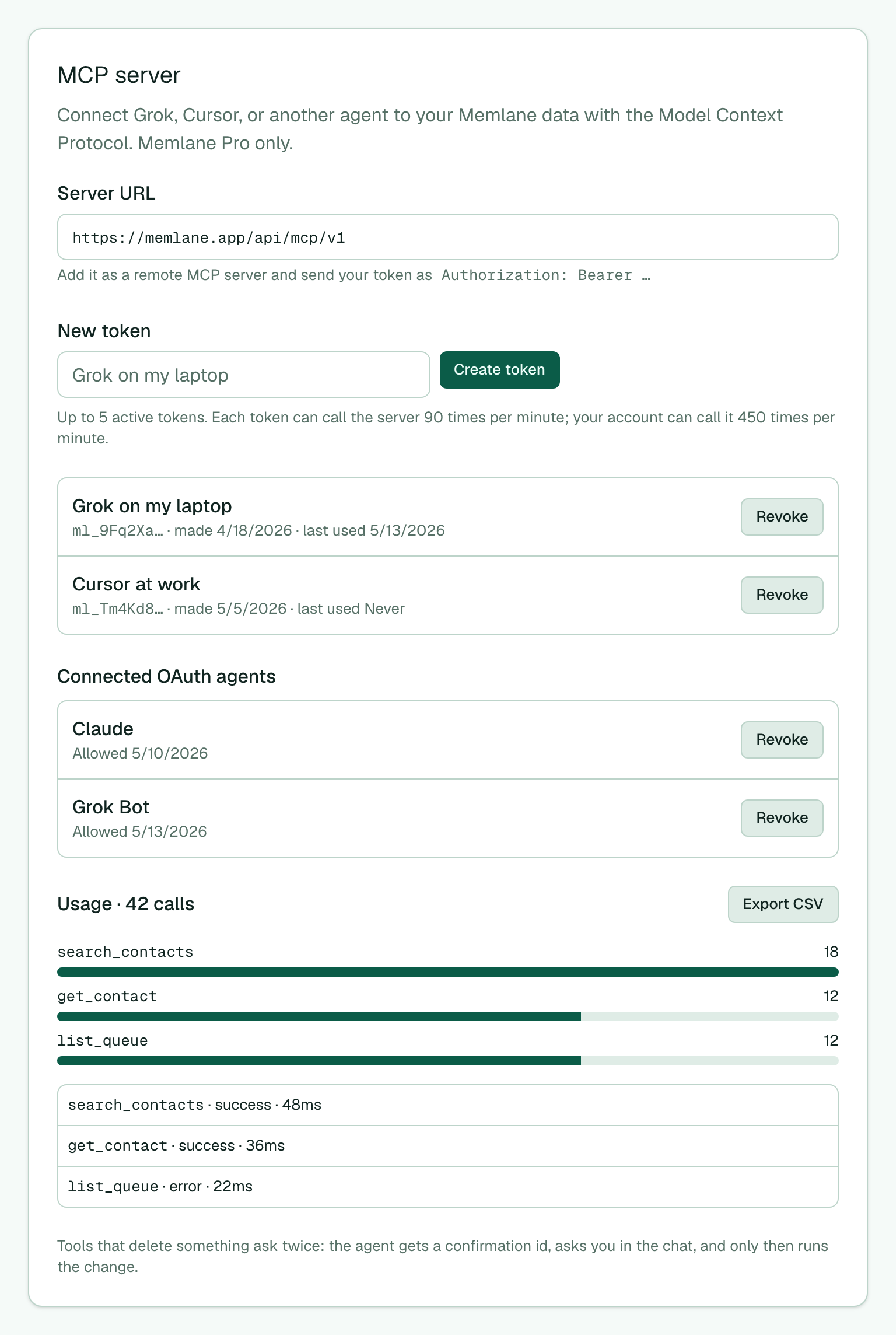
- Open Settings (gear in the header), then scroll to MCP server.
- Copy the Server URL. Your agent needs it.
- Type a name in New token, such as
Laptop agent. One token for each agent keeps the list clear. - Choose Create token.
- Copy the token now. Memlane keeps only a hash, so this is the one time you see it.
You can keep 5 active tokens. Choose Revoke beside a token to stop an agent at once.
Connect with a token
Use this when your agent asks for a Bearer header (common in Cursor, Grok Build CLI, and custom connectors).
- In your agent, add a remote MCP server and paste the Server URL.
- Set the header
Authorization: Bearer <your token>. - Start a chat and ask the agent to list its Memlane tools.
Ask the agent for something small first, such as "find Jordan Lee in Memlane". Search gives the agent the id it needs for the other tools.
Lane tools also accept names. Ask "add Jordan Lee to Friendship as Acquaintance" and the agent does it in one call. If Jordan is already on the lane, Memlane moves Jordan to that stage.
Connect with OAuth
Use this when your agent supports OAuth (Grok Bot, Claude Connectors, ChatGPT plugins, and other OAuth clients).
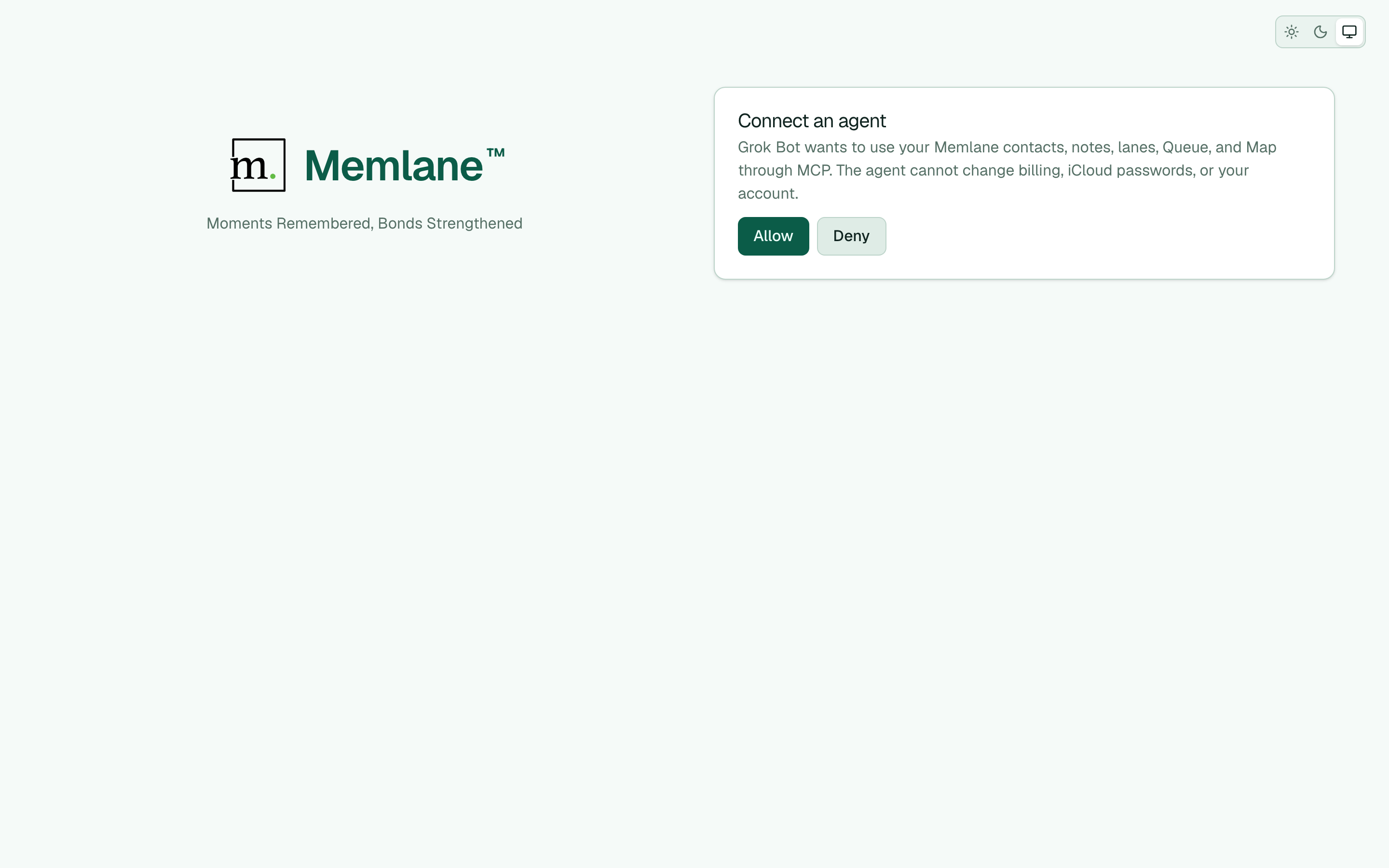
- In the store or connector form, paste the Memlane Server URL.
- The agent opens Memlane. Sign in with email, Google, or Apple if asked.
- Choose Allow on Connect an agent.
- You need Memlane Pro. The agent uses the contacts in your Memlane account, local or synced.
Open Settings → MCP server later to see Connected OAuth agents and choose Revoke.
Rate limits
Each token or OAuth grant can call the server 90 times per minute. Your account can call it 450 times per minute across all grants. You can create 10 tokens per hour. Destructive tools allow 60 confirmation challenges per hour.
If you hit a limit, wait for the next minute and try again. Settings shows the same numbers under MCP server.
See usage
The same Settings card shows call counts, top tools, and recent activity. Choose Export CSV for hourly totals.
Deletes need a second yes
Tools that delete something change nothing on the first call. The agent gets a confirmation id and a short summary, such as Remove Alex from the Friendship lane.
- The agent reads the summary to you.
- You answer yes or no in the chat.
- Only after your yes does the agent run the change.
A confirmation works one time and expires after 5 minutes. If you say no, do nothing. The confirmation expires by itself.
The MCP server cannot touch your billing, contact-sync credentials, or your account deletion. Those stay in the app.
Read Memlane Pro to compare Free and Pro.